On this page
An AI visibility audit shows how your page looks to the crawlers behind ChatGPT, Claude, Perplexity, Gemini and the search engines: whether they are allowed in, whether they can read what they find, and whether it is structured well enough to be cited. This guide walks through running your first audit with AI Crawl Radar and reading every part of the report. It is sometimes called an AI crawler audit or an AI crawlability check; the questions are the same.
Step 1: Run the audit
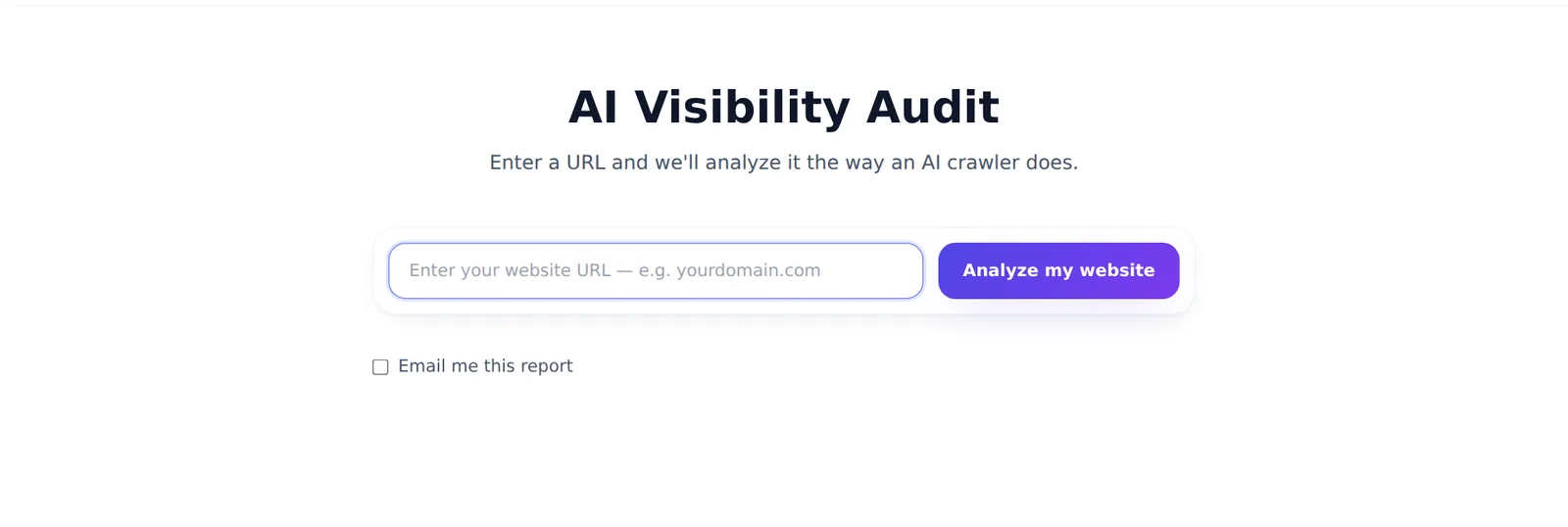
- Open the AI visibility audit tool.
- Enter the address of the page you want to check, such as your homepage or a key product or article page.
- Optionally check Email me this report to get the report by email.
- Start the audit. It usually takes a few seconds.
You do not need an account for your first audits. Guests get a small daily allowance; a free account raises it and keeps your last 10 analyses in your dashboard. If you reach the limit, the tool tells you and offers sign-up.
Which page should I audit? Start with your homepage, then audit the pages you most want quoted: product pages, pricing, guides and documentation. Each audit scores the page you enter, plus the site-wide files (robots.txt, llms.txt, sitemap) that apply to it.
Step 2: Read the overall score
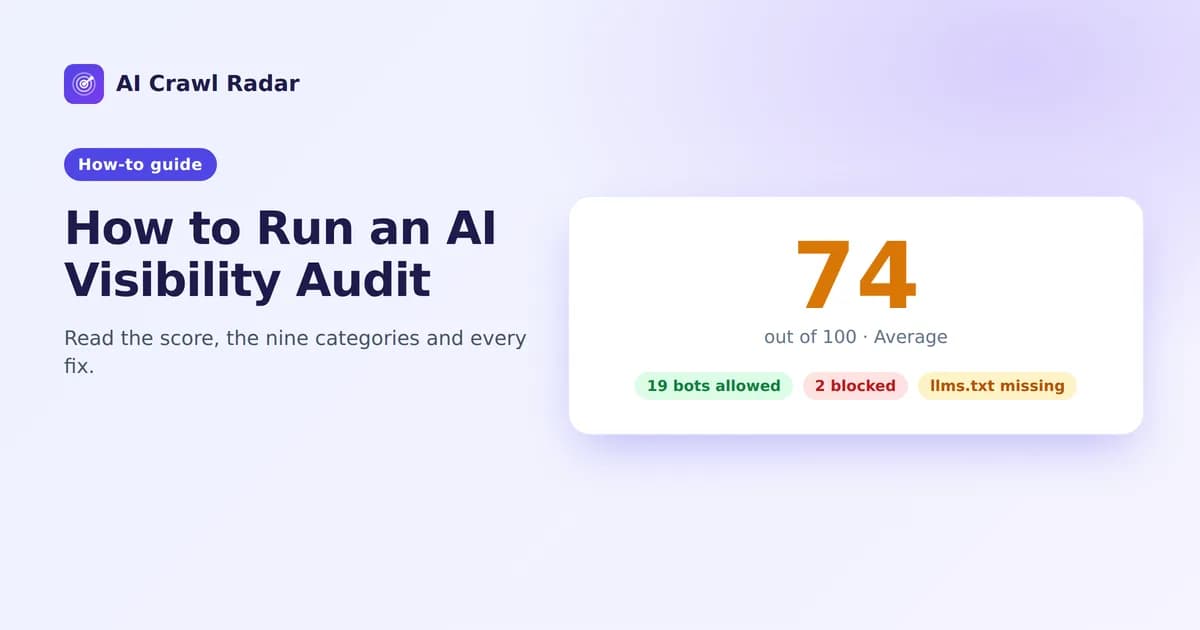
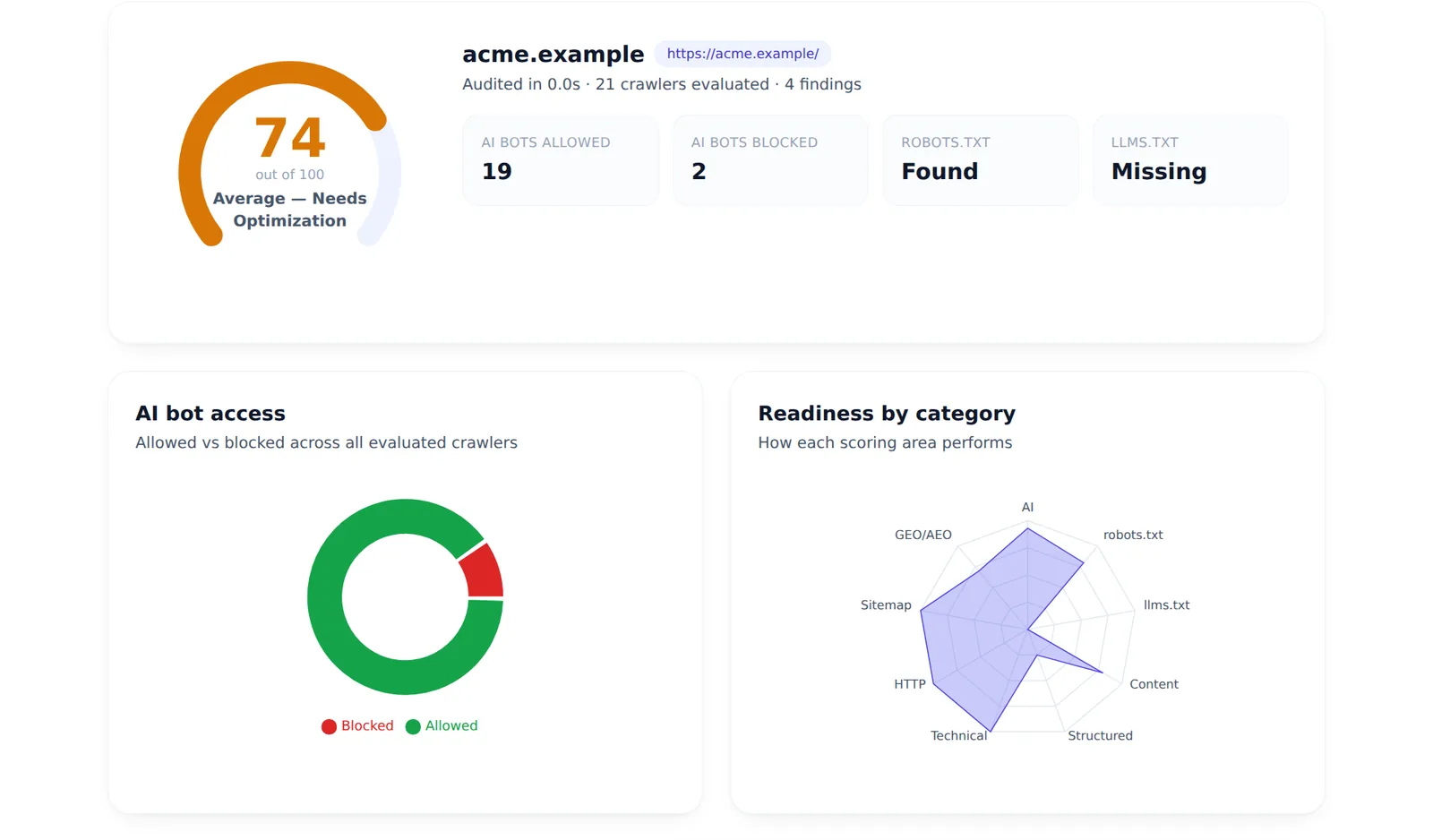
The report opens with a score from 0 to 100 and a band:
| Score | Band |
|---|---|
| 90–100 | Excellent — AI Ready |
| 75–89 | Good — Minor Improvements Needed |
| 50–74 | Average — Needs Optimization |
| 25–49 | Poor — High Risk |
| 0–24 | Critical — Almost Invisible to AI |
Alongside it you see quick facts: how many AI crawlers are allowed and blocked, and whether robots.txt and llms.txt were found.
Step 3: Read the score breakdown
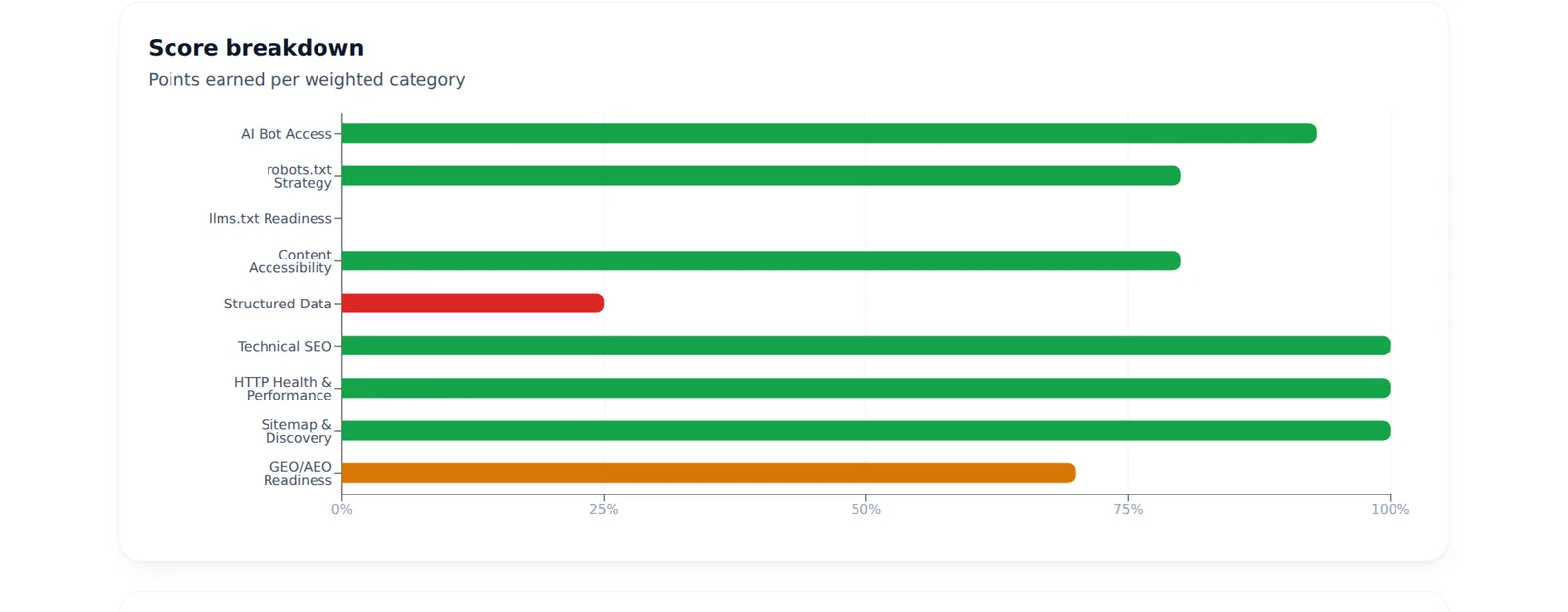
The total is the sum of nine categories. Their maximum points show what matters most:
| Category | Max points | Fix guide |
|---|---|---|
| AI Bot Access | 25 | Fix AI bot access |
| robots.txt Strategy | 15 | robots.txt for AI crawlers |
| Content Accessibility | 15 | Content accessibility |
| llms.txt Readiness | 10 | What is llms.txt? |
| Structured Data | 10 | Structured data |
| Technical SEO | 10 | Technical SEO |
| HTTP Health & Performance | 5 | HTTP health |
| Sitemap & Discovery | 5 | Sitemaps |
| GEO/AEO Readiness | 5 | GEO/AEO readiness |
Every category in the report has an ⓘ icon with a short explanation and a link to its fix guide. Start with the categories where you lost the most points, not the ones with the lowest percentage. Losing 12 of 25 points on bot access matters more than losing 3 of 5 on sitemaps.
Step 4: Check AI bot access
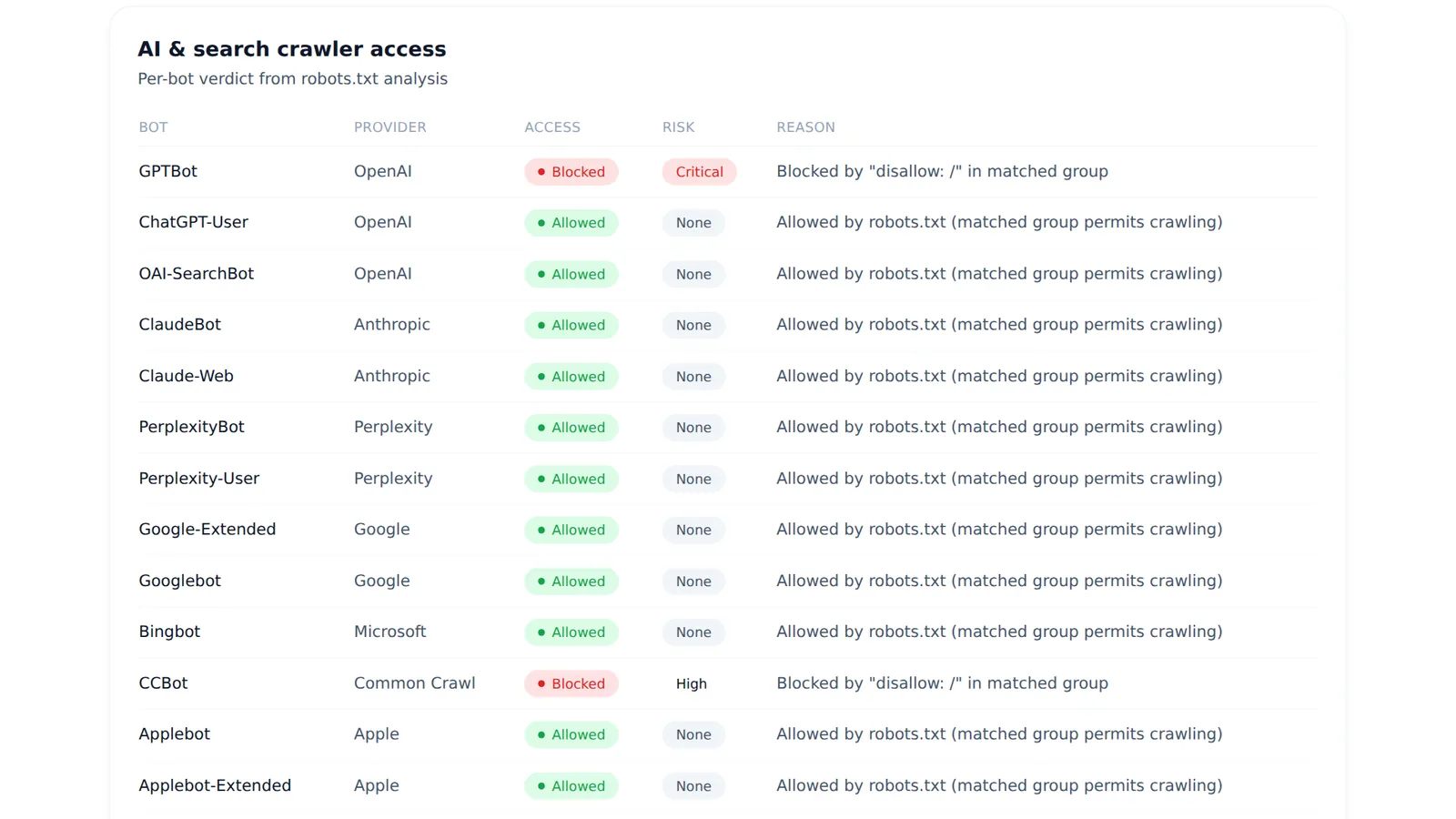
The AI & search crawler access table lists the verdict, risk and reason for each of the 21 crawlers the audit evaluates (GPTBot, ChatGPT-User, OAI-SearchBot, ClaudeBot, PerplexityBot, Google-Extended, Googlebot, Bingbot, Applebot and more). For a blocked bot, the reason quotes the robots.txt rule that blocks it, so you know which line to change.
Step 5: Work through findings and recommended fixes
Two lists turn the score into a to-do list:
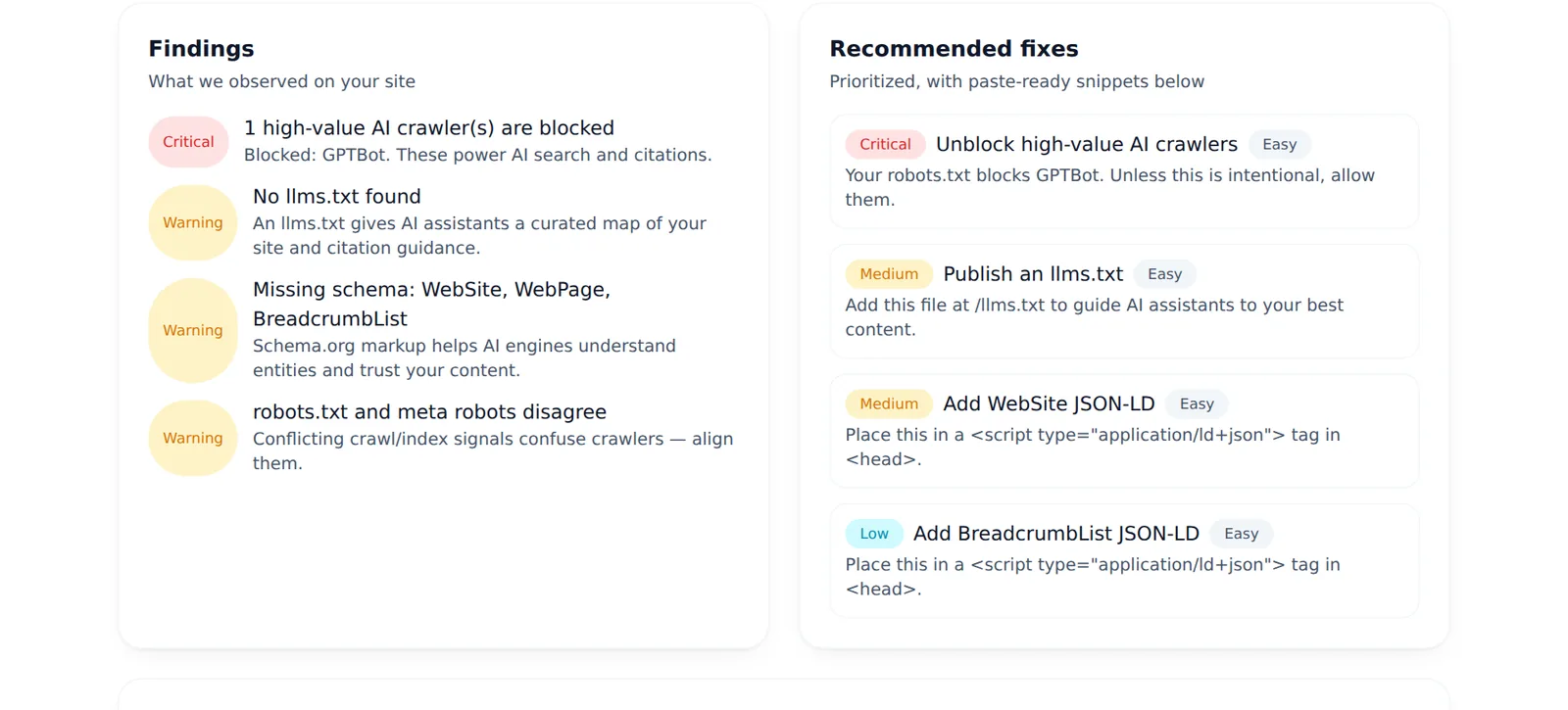
- Findings are what the audit observed on your site, each marked critical, warning or good. Critical findings, such as "Content appears to require JavaScript", "Page is set to noindex" or "Bot challenge detected", can make you invisible to AI no matter how the rest scores, so handle them first.
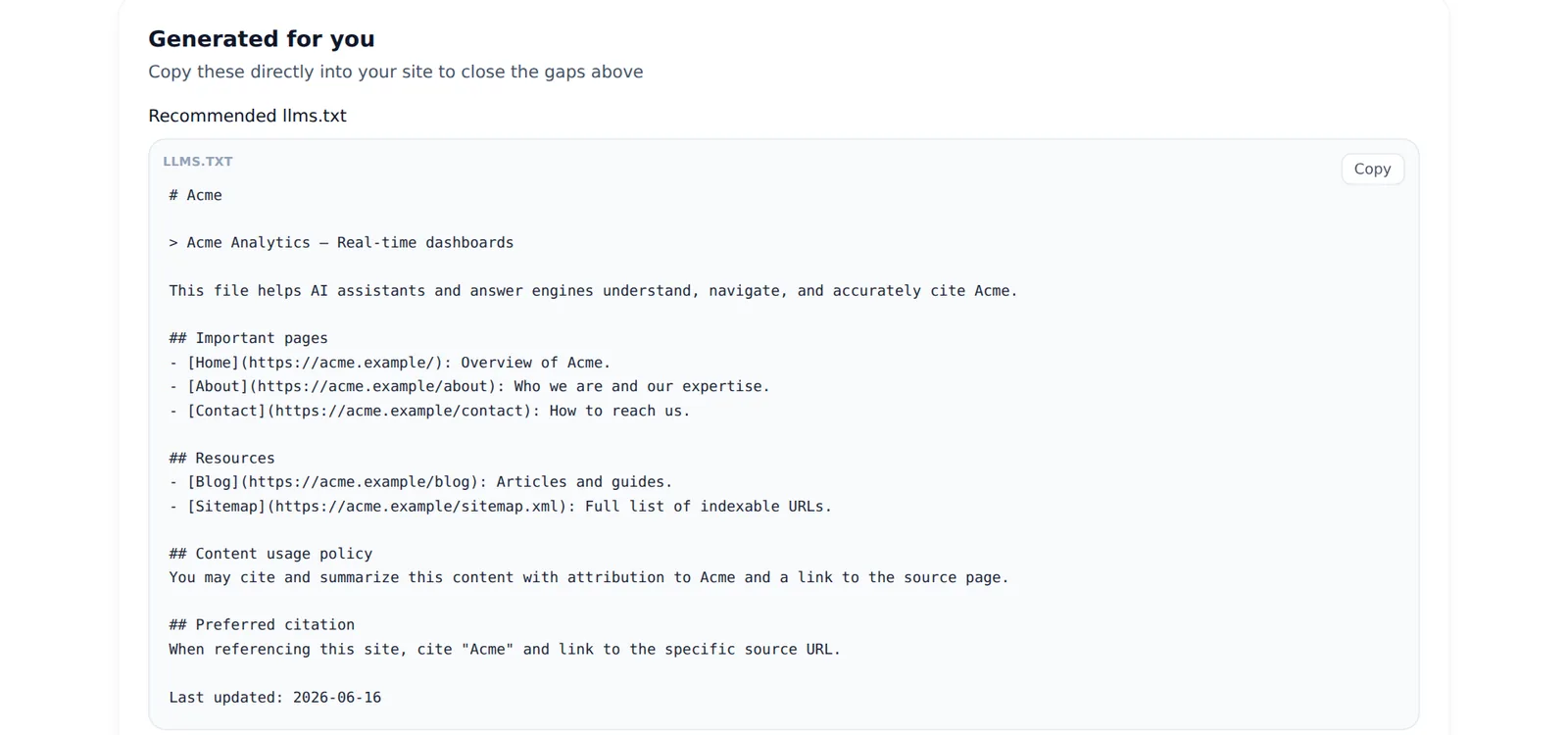
- Recommended fixes are prioritized actions, each tagged with priority and difficulty. Many include a paste-ready snippet: a robots.txt block, an llms.txt template or a JSON-LD schema block.
The Generated for you section collects those snippets so you can copy them straight into your site.
Step 6: Export or share the report
Use the buttons at the top of the report:
- Download PDF for a formatted report to share with a client or your team.
- Export CSV for a spreadsheet of findings and recommendations.
- Export JSON for the raw data, for developers or your own tools.
Every audited domain also gets a public report page at /ai-visibility/yourdomain.com that you can share by link. Public reports and the score badge explains how these pages work, how to make yours private, and how to embed your score.
Step 7: Fix, then re-check
After you change something, run the audit again to confirm the fix. On a public report page, use the re-check button; a domain can be re-checked once every six hours, and reports also refresh themselves when they are more than 30 days old. Re-check always audits the domain's homepage, so to confirm a fix on another page, run that URL in the audit tool.
Want to see a full report first? The sample report shows every section for a demo domain, in exactly the format your own report uses.
Going further
- Check a site quickly, or generate an llms.txt, with the free tools.
- Track changes over time with scheduled scans and alerts in the dashboard.
- On WordPress, fix most findings from wp-admin with the AI Visibility Optimizer plugin.
Frequently asked questions
6 questions people ask about this topic
Is the AI visibility audit free?
What does the audit check?
Which AI crawlers does it test?
How often should I re-run the audit?
Does the audit show whether ChatGPT cites my site?
Does the audit check my whole site?
See how AI crawlers read your site
Run a free AI visibility audit: a 0–100 score and a fix for every lost point.
Analyze my website