On this page
AI Visibility Optimizer is a free WordPress AI crawler plugin from AI Crawl Radar. This guide shows how to track AI crawlers in WordPress, then walks through every other feature. It brings the audit's checks into wp-admin and lets you fix most of them there: it serves an llms.txt, lets you choose which AI crawlers may crawl your site, suggests AI-friendly robots.txt rules, fills schema gaps without duplicating your SEO plugin, scores every post for AI readability, and, if you switch it on, records which AI crawlers actually visit.
Everything in the free plugin works with no account and no license key, and it never contacts our service unless you connect an account. This guide walks through installing it and using each part.
Install and activate
- Download the plugin from the WordPress plugin page.
- In wp-admin, go to Plugins → Add New Plugin → Upload Plugin, choose the zip file, and click Install Now, then Activate.
- Open AI Crawl Radar in the admin menu. It opens on Content Readiness.
- Click Analyze now to run the first analysis.
Works alongside your SEO plugin. It merges with your SEO plugin's robots.txt rules instead of overwriting them, leaves schema to Yoast or Rank Math when either is active, and loads no JavaScript or CSS on your public pages.
How to track AI crawlers in WordPress
The plugin can record which AI crawlers actually visit your site, in your own WordPress database. Tracking is off by default.
- Open AI Crawl Radar → Crawlers.
- Read what tracking does, then switch it on.
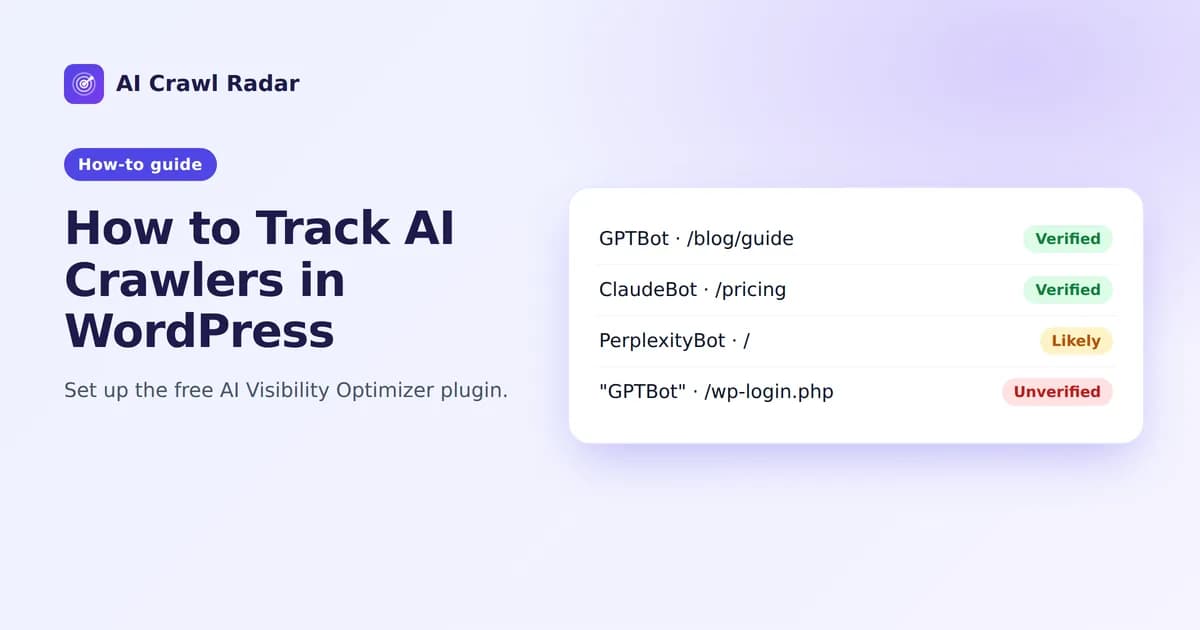
- Check the Recent visits table and filter it by bot to see which pages each AI crawler reads.
For each request from a known AI crawler, such as GPTBot, ClaudeBot, PerplexityBot or OAI-SearchBot, the plugin stores the crawler name, the path requested, the HTTP status and the time. Requests from human visitors are discarded, and nothing about them is stored.
New visits show as pending until a background job, which runs about every 10 minutes, checks each one with a DNS lookup on the visiting IP and labels it Verified, Likely or Unverified. That way a scraper using GPTBot's name is not counted as GPTBot. The IP is used for that check and then erased. History is kept for 60 days by default, adjustable from 7 to 365.
That DNS lookup leaves your server, which is why tracking is something you switch on rather than something that switches itself on.
Your robots.txt says who may visit; tracking shows who did. Together they answer a question many site owners ask: "Is ChatGPT actually reading my site?"
If you only need the plugin itself, start on the free AI bot tracker plugin for WordPress page. To see crawler activity across several sites in one place, see the dashboard guide.
Content Readiness: your starting point
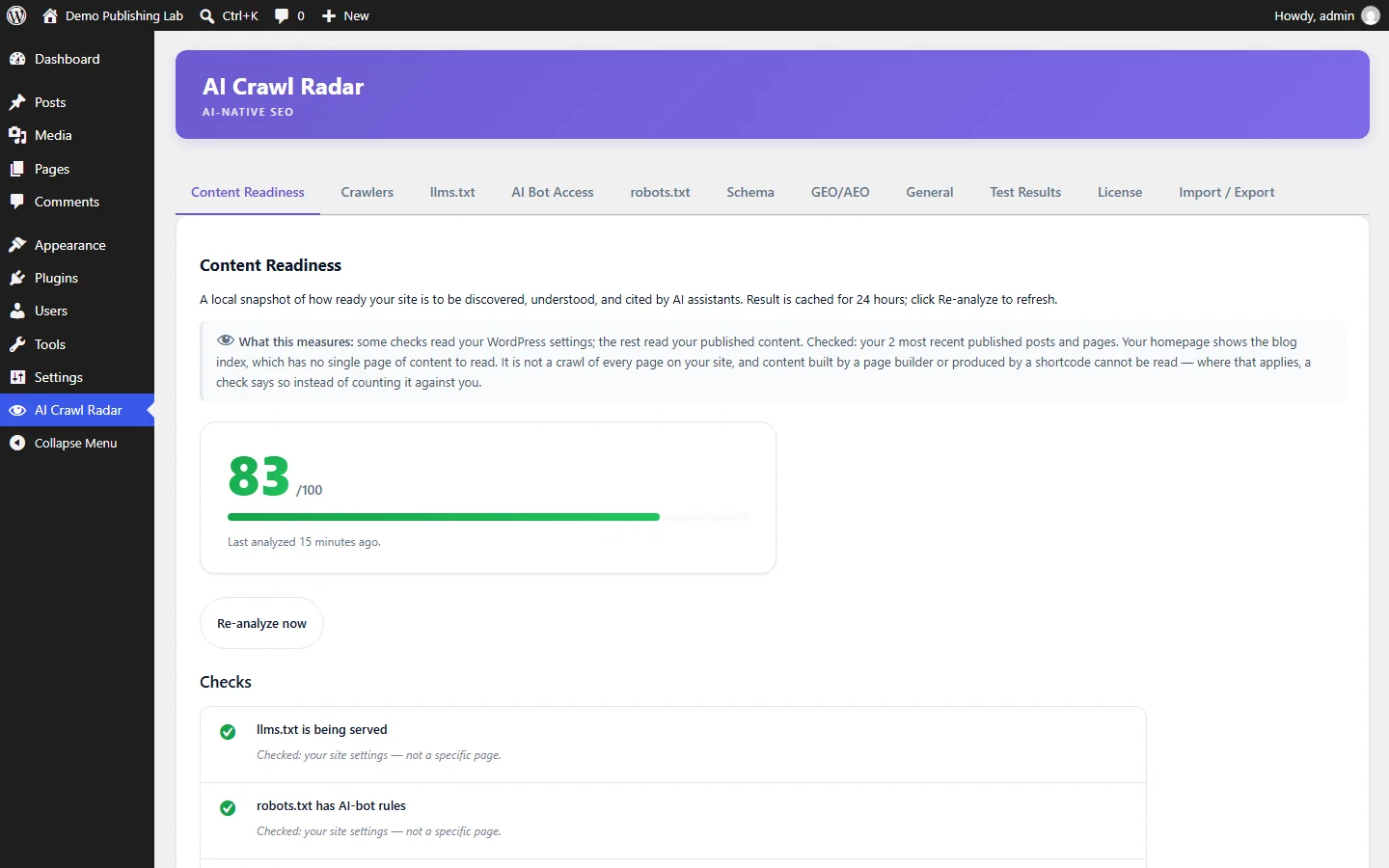
Content Readiness gives your site an AI-readability score built from your WordPress settings plus a sample of your published content, starting with your homepage. Every check says what it inspected and what it looked for, so you can see why you passed or failed rather than just a number.
The analysis runs in the background or when you click Re-analyze now. Opening the screen shows the stored result and when it was taken, so viewing it never slows wp-admin down.
The AI score column
On your Posts and Pages lists, a new column shows a 0–100 AI score for each item, color-coded and sortable. It is calculated locally when you save a post, from headline, structure and readiness analysis. Sort by it to find your weakest content first. Listing posts runs no analysis, so the column costs nothing in speed.
llms.txt Manager
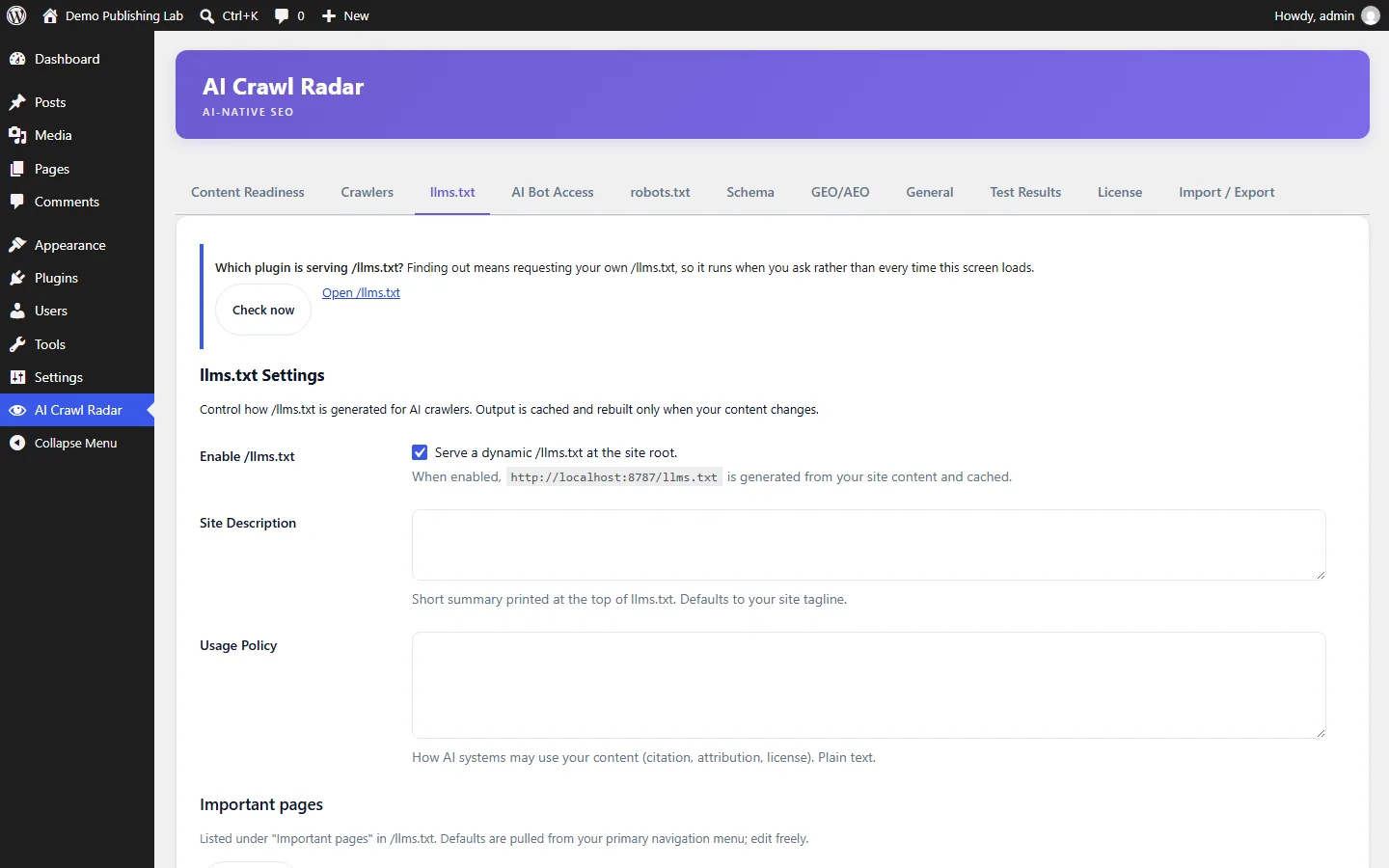
The plugin generates an llms.txt for your site dynamically, caches it, and rebuilds it when your content changes. You can edit it from the admin.
- Open the llms.txt section and review the generated file.
- Edit the description so it says plainly what your site does.
- Visit
https://yoursite.com/llms.txtto confirm it is served.
If another plugin already serves a physical llms.txt file, the plugin can detect which one is answering. Use the "Check now" button. That way you do not end up with two plugins fighting over the same URL.
AI Bot Access
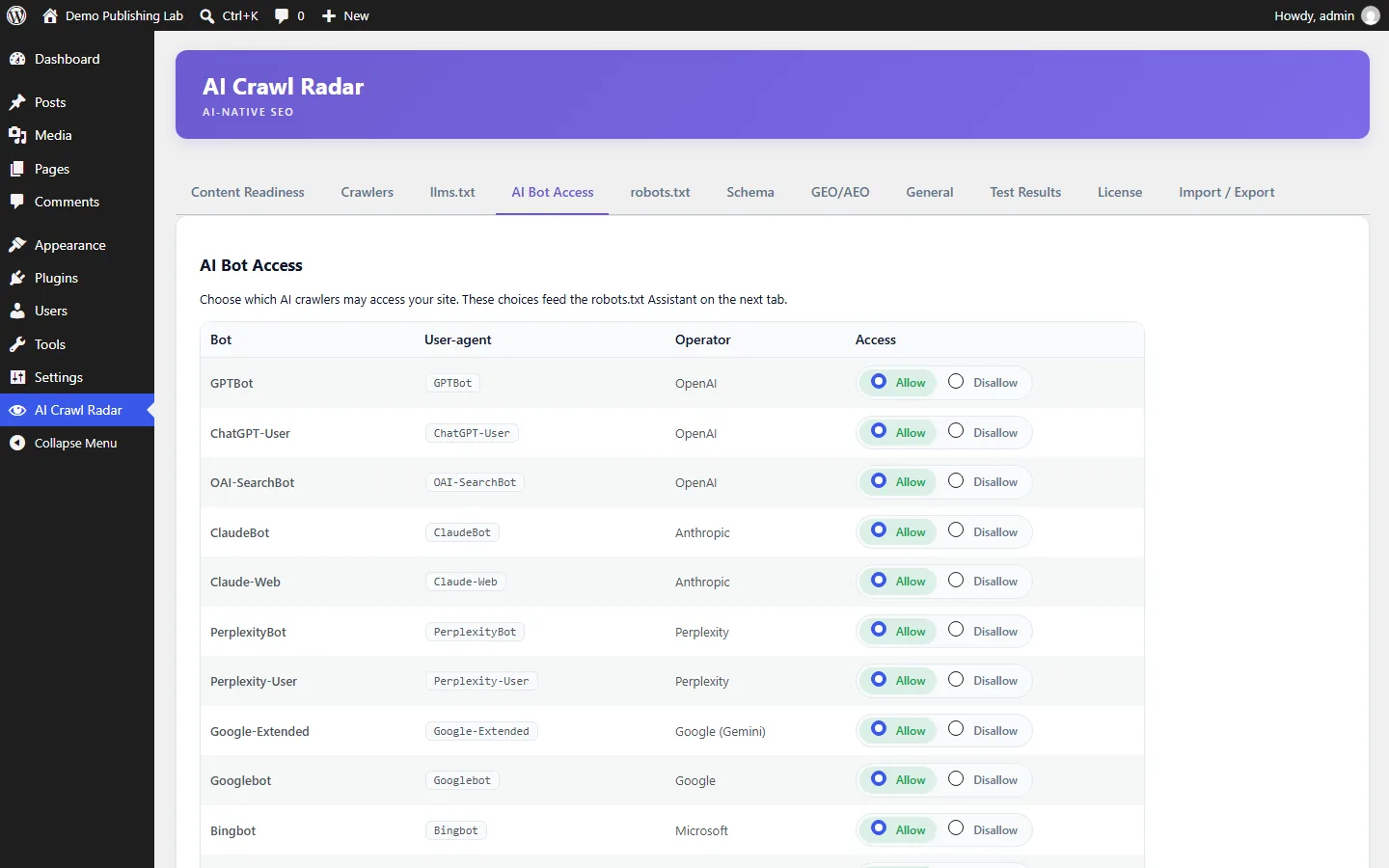
This screen lists the AI crawlers the plugin knows (GPTBot, ClaudeBot, PerplexityBot, Google-Extended, CCBot and more) and lets you set each one to Allow or Disallow. Your choices feed the robots.txt Assistant on the next tab. To check what your live robots.txt actually allows, run the audit: its AI Bot Access category answers that from outside your site.
robots.txt Assistant
WordPress serves a virtual robots.txt, and SEO plugins add their own rules to it. The assistant suggests AI-friendly rules and merges them safely with the rules already there, instead of replacing the file. Review the generated block before enabling it. If your site has a physical robots.txt file, the plugin does not edit it and gives you the block to paste in yourself. The robots.txt guide explains the choices, including keeping training crawlers out while letting AI search crawlers in.
Schema Assistant
Without Yoast or Rank Math, the assistant outputs Organization, WebSite, BreadcrumbList and, on posts, BlogPosting. When either of them is active, it leaves those types to your SEO plugin. In both cases it adds FAQPage when a post contains question-and-answer content. Check that a WebPage type is present too, since the audit looks for it; Yoast and Rank Math usually output it. See structured data for AI.
GEO/AEO Optimizer
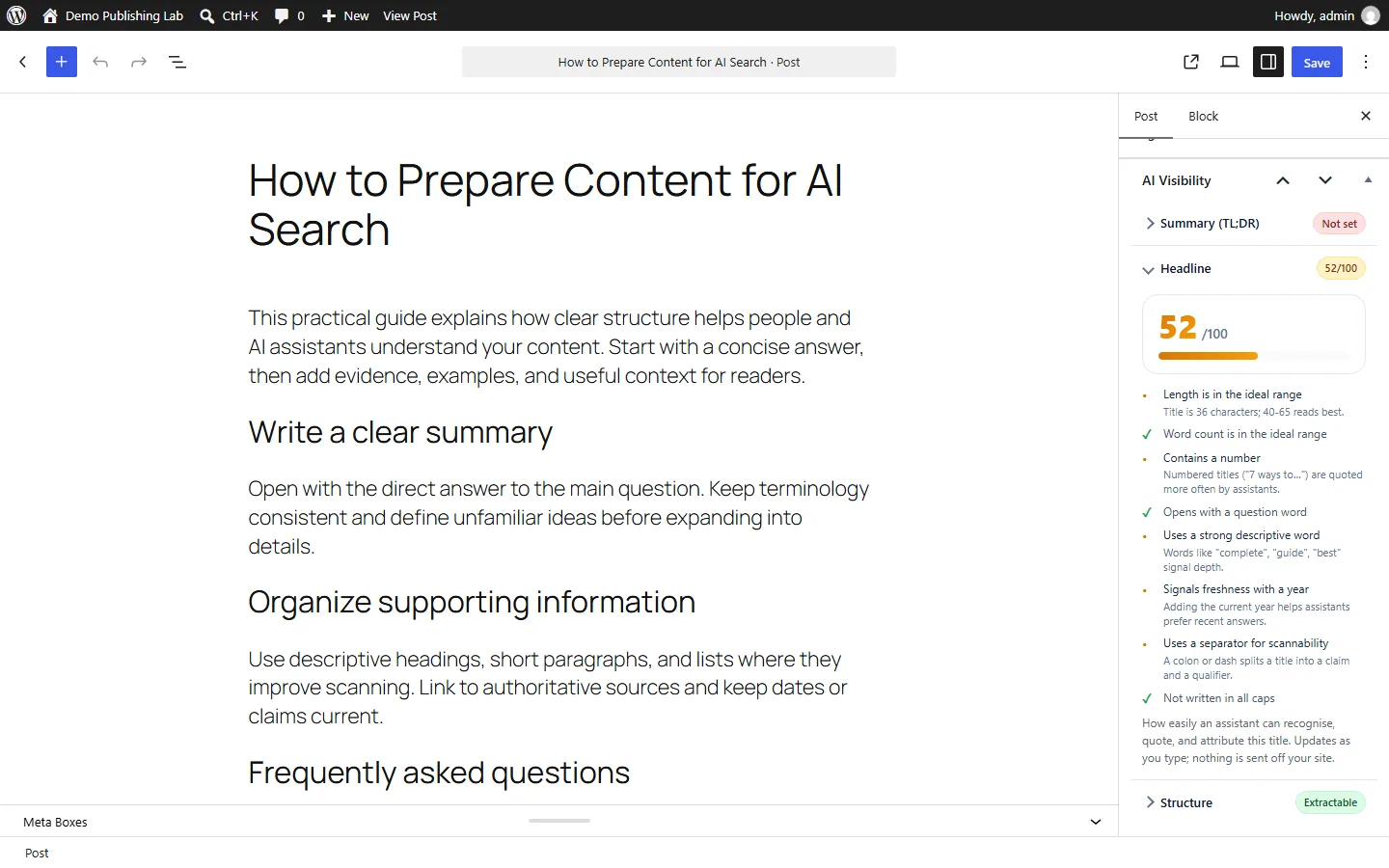
While you edit a post, the plugin's AI Visibility panels help make it easier for AI answers to quote: a TL;DR summary (with Auto-fill), a headline score, and structure suggestions such as adding a one-sentence summary near the top, including specific numbers, stating key definitions plainly and breaking key points into a list. Several of these overlap with the audit's GEO/AEO Readiness signals.
Optional: connect your AI Crawl Radar account
On the plugin's License tab you can connect an AI Crawl Radar account. This is the only thing that makes the plugin contact our service at all. Connecting adds off-site audits and a cross-site dashboard. WordPress plugin sync is included on paid plans; see pricing for how many sites each plan covers.
The Pro add-on
AI Visibility Optimizer Pro (a separate plugin, not the same thing as the AI Crawl Radar Pro plan) is a licensed add-on that installs next to the free one and adds:
- IndexNow notifications: tell Bing, Yandex, Naver, Seznam and Yep when you publish or update a post. Google does not take part in IndexNow.
- One-click llms.txt takeover: back up and replace a physical llms.txt that another plugin owns.
- Scheduled readiness refresh: recalculate Content Readiness every day through WP-Cron.
None of the Pro code ships in the free plugin. Nothing in the free plugin is "present but locked".
Check the result from outside
After making changes in WordPress, run the AI visibility audit on your site. It sees your site from the outside, as a crawler does, including anything a CDN or firewall in front of WordPress changes. That is something no plugin can see from the inside.
Frequently asked questions
6 questions people ask about this topic
How do I see which AI crawlers visit my WordPress site?
Does crawler tracking store data about my visitors?
Is the plugin free?
Does it slow down my site?
Does it conflict with Yoast or Rank Math?
What if my site already has a physical robots.txt or llms.txt file?
See how AI crawlers read your site
Run a free AI visibility audit: a 0–100 score and a fix for every lost point.
Analyze my website